How I Set Up SEO in My Next.js Portfolio from Zero
Key Takeaways
- →Next.js App Router's built-in
metadataexport handles all<meta>tags, OG, Twitter cards, and robots in one place - →Google requires a 192×192px PNG favicon — a standard
favicon.ico(16×32px) won't show in search results - →Always set
metadataBasefirst — everything else (OG images, canonical) depends on it - →Use
display: "swap"withnext/fontto prevent LCP penalties from font loading - →Verify ownership in Google Search Console using the
metadata.verification.googlefield
This post is Part 1 of the Can I Make Google Happy? series — a developer's real-world guide to making Google actually index and rank your Next.js site.
Introduction
When I built my portfolio, I didn't want to just slap a title tag on the page and call it SEO. I wanted Google to fully understand who I am, what I do, and why my site deserves to show up when someone searches "frontend developer Ahmedabad" or "hire React developer India."
This blog walks you through exactly how I set up SEO in my Next.js App Router portfolio — with real code from my actual project — and how I verified everything worked using Google Search Console.
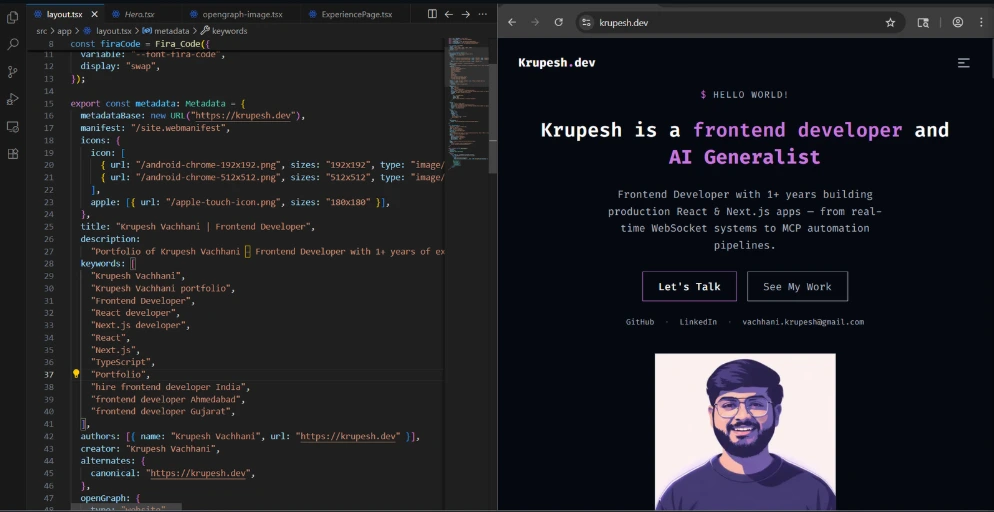
Why `metadata` in Next.js Beats a Raw `<meta>` Tag
In traditional HTML, you'd add SEO tags like this:
<head>
  <title>Krupesh Vachhani | Frontend Developer</title>
  <meta name="description" content="..." />
</head>
This works — but it's manual, error-prone, and doesn't scale. Next.js App Router has a built-in metadata export in layout.tsx that handles everything automatically, including generating <title> and <meta> tags, setting canonical URLs, configuring robots behavior, and handling Open Graph and Twitter cards.
Here's the shape of what goes in src/app/layout.tsx:
import type { Metadata } from "next";

export const metadata: Metadata = {
  metadataBase: new URL("https://your-domain.com"),
  title: "Your Name | Your Role",
  description: "A clear value proposition — who you are and what you build.",
  keywords: [ /* your own targeted phrases — figure these out yourself */ ],
  authors: [{ name: "Your Name", url: "https://your-domain.com" }],
  creator: "Your Name",
  alternates: {
    canonical: "https://your-domain.com",
  },
};
Let me break down each field.
Breaking Down Every Field
metadataBase
metadataBase: new URL("https://your-domain.com"),This is the base URL for your site. Next.js uses this to resolve relative paths for images in Open Graph, Twitter cards, etc. Without it, image URLs will be broken in social previews. Always set `metadataBase` first. Everything else depends on it.
title
title: "Your Name | Your Role",
Format: [Your Name] | [Your Role]. Google shows ~60 characters in search results. Keep it under 60. Include your primary keyword naturally — think about what someone would actually search to find you.
description
description: "Your value proposition — who you are, what you build, what makes you different.",Google shows ~155–160 characters as the meta description snippet. Write it like a pitch — not a list of keywords. Do NOT keyword-stuff this. Google ignores it for ranking but users read it to decide whether to click.
keywords
Don't copy anyone else's keyword list here — that's how you compete with yourself. Think about what a recruiter or client in your city would actually type into Google. Your role, your stack, your location. Write those phrases yourself.
Google officially ignores the keywords meta tag for ranking, but Bing and DuckDuckGo still read it. More importantly, writing the list forces you to be intentional about what you're optimising for.
canonical
alternates: {
  canonical: "https://your-domain.com",
},
A canonical URL tells Google: "This is the one true version of this page." It prevents duplicate content issues if your site is accessible at multiple URLs (e.g., www.example.com and example.com).
robots
robots: {
  index: true,
  follow: true,
  googleBot: {
    index: true,
    follow: true,
    "max-image-preview": "large",
    "max-snippet": -1,
  },
},- →
index: true— Allow Google to index this page - →
follow: true— Allow Google to follow links on this page - →
max-image-preview: "large"— Google can show large preview images in search results - →
max-snippet: -1— No limit on how much text Google can show as a snippet
How `next/font` Affects SEO
import { Your_Font } from "next/font/google";

const yourFont = Your_Font({
  subsets: ["latin"],
  variable: "--font-your-font",
  display: "swap",  // ← this is the critical part
});
display: "swap" tells the browser to show the fallback font immediately, then swap to your custom font once it loads. Without swap, the browser hides text until the font loads — this causes a blank flash and hurts your LCP (Largest Contentful Paint) score, which is a Core Web Vital that directly affects your Google ranking.
next/font also self-hosts fonts — no external request to fonts.googleapis.com, which removes a DNS lookup from your critical path.
The Favicon Trap
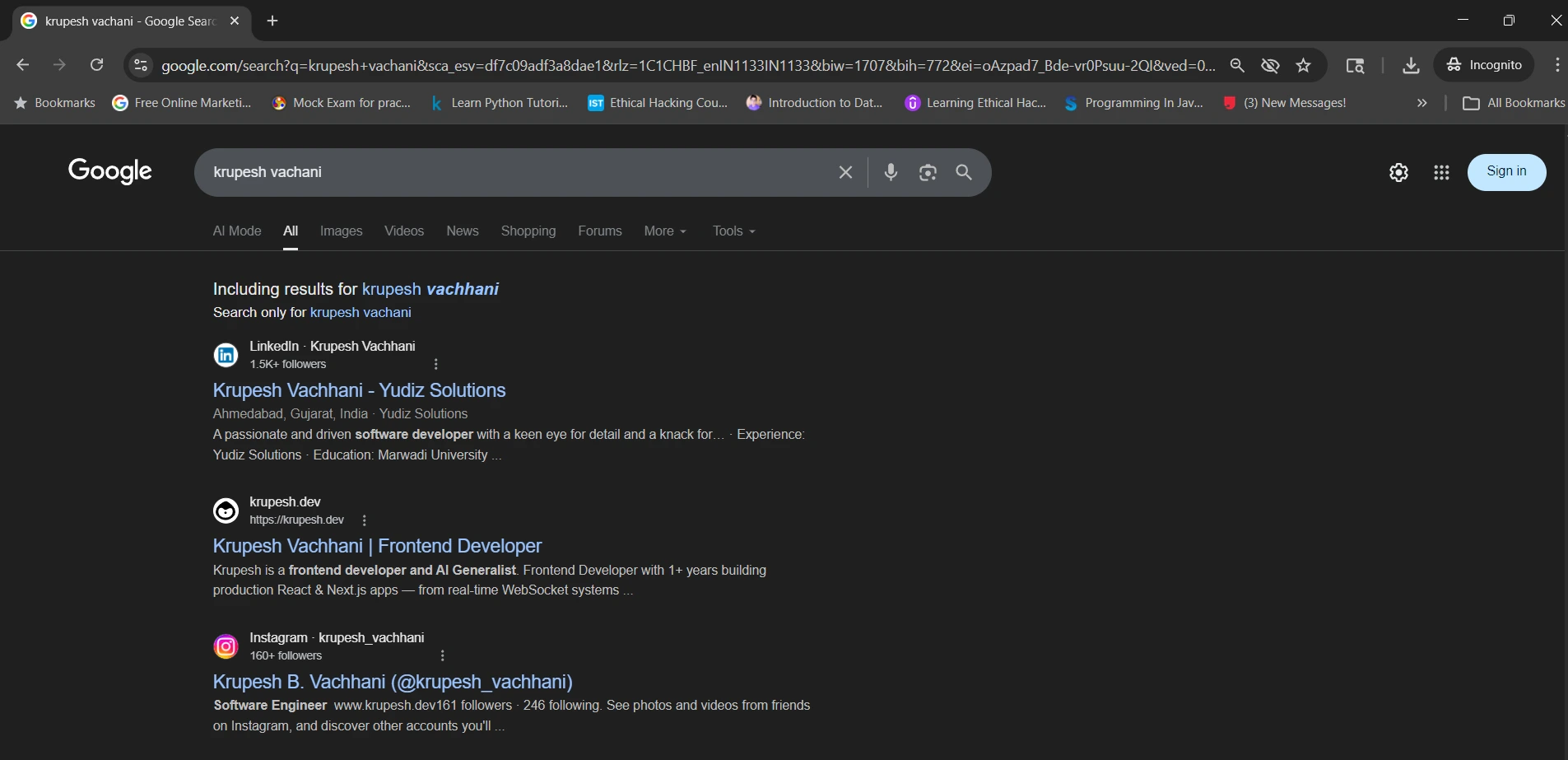
This is the mistake I made — and almost every developer makes it. I added a favicon.ico to my Next.js project, saw it showing correctly in the browser tab, and assumed Google would pick it up. It didn't. For weeks my portfolio showed a generic grey globe icon in search results.
The reason? Google has a strict minimum size rule for favicons in search results. Google will only display your favicon if it is at least 48×48 pixels. A standard favicon.ico contains 16×16 and 32×32 sizes — both below the threshold. Google silently ignores it and falls back to the generic globe icon. This is documented in Google's favicon guidelines but almost nobody reads it until they notice the problem.
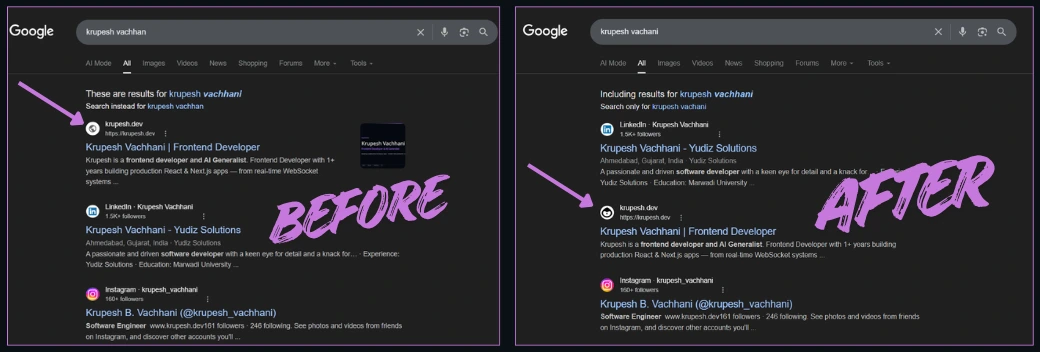
The Fix: Add a 192×192 PNG in Next.js App Router
Next.js App Router treats a file named icon.png in src/app/ as your site's primary icon and generates the correct <link rel="icon"> tag automatically.
Step 1: Get your favicon as a 192×192 PNG using Favicon.io, RealFaviconGenerator.net, or Squoosh.
Step 2: Place files in the correct locations:
src/app/
  favicon.ico        ← browser tab (keep this)
  icon.png           ← 192×192 PNG — Google Search reads THIS
  apple-icon.png     ← 180×180 PNG — iOS home screen

public/
  android-chrome-192x192.png   ← referenced by webmanifest
  android-chrome-512x512.png   ← referenced by webmanifest
  site.webmanifest             ← PWA manifest
Step 3: Register the icons and manifest in metadata inside layout.tsx:
export const metadata: Metadata = {
  // ...your other fields
  manifest: "/site.webmanifest",
  icons: {
    icon: [
      { url: "/android-chrome-192x192.png", sizes: "192x192", type: "image/png" },
      { url: "/android-chrome-512x512.png", sizes: "512x512", type: "image/png" },
    ],
    apple: [{ url: "/apple-touch-icon.png", sizes: "180x180" }],
  },
};
Step 4: Update your site.webmanifest with your real name and brand colors:
{
  "name": "Your Full Name",
  "short_name": "Short",
  "icons": [
    { "src": "/android-chrome-192x192.png", "sizes": "192x192", "type": "image/png" },
    { "src": "/android-chrome-512x512.png", "sizes": "512x512", "type": "image/png" }
  ],
  "theme_color": "#your-brand-color",
  "background_color": "#your-brand-color",
  "display": "standalone"
}
Step 5: Delete any static public/robots.txt and switch to src/app/robots.ts (covered in Blog 04).
After deploying, open Google Search Console → URL Inspection → Test Live URL on your homepage. Click "More Info" and confirm icon.png, favicon.ico, and site.webmanifest all return 200 OK. Google re-fetches favicons on its own crawl schedule — expect the correct favicon to appear within 1–2 weeks after deploying the fix.
The Quick Reference
- →
favicon.ico(16×16, 32×32) — Browser tab - →
icon.png(192×192) — Google Search - →
apple-icon.png(180×180) — iOS home screen - →
android-chrome-512x512.png(512×512) — Android / PWA splash
Google Search needs the 192×192 PNG. Everything else is a bonus.
Google Search Console: Verify Your Site
Before Google indexes you, you need to prove you own the site. Go to Google Search Console → Add property → choose "URL prefix" → enter your domain → choose "HTML tag" verification method. You'll get a code like:
<meta name="google-site-verification" content="YOUR_TOKEN_HERE" />
In Next.js, add it to your metadata — no raw <meta> tag needed:
verification: {
  google: "xxxxxxxxxxxxx",
},
Next.js automatically injects the verification meta tag in the <head>. Click "Verify" in GSC and you're done.
What to Check in GSC After Setup
Once verified, wait 24–48 hours then check:
- 1.Coverage report — Are your pages indexed?
- 2.Performance report — What queries are people using to find you?
- 3.URL Inspection — Paste your homepage URL, see exactly how Google sees it
The URL Inspection tool shows whether the page is indexed, the last crawl date, any indexing errors, and a live preview of how Google renders your page.
Summary Checklist
- →
metadataBaseset to your domain - →
titleunder 60 characters with primary keyword - →
descriptionunder 160 characters, written as a value proposition - →
canonicalURL set - →
robotsconfigured withmax-image-previewandmax-snippet - →
next/fontwithdisplay: "swap"for LCP - →
src/app/icon.pngat 192×192 — Google Search favicon - →
src/app/apple-icon.pngat 180×180 — iOS home screen - →
site.webmanifestinpublic/with correct name and brand colors - →
metadata.iconsandmetadata.manifestregistered inlayout.tsx - →GSC URL Inspection confirms all icon files return
200 OK - →Google verification added via
metadata.verification.google - →Site submitted and verified in Google Search Console
Resources
- →Next.js Metadata API docs — full reference for every metadata field
- →Google's favicon guidelines — the 48×48 minimum rule documented
- →Google Search Console — verify and monitor your site
- →web.dev Core Web Vitals — understand LCP, FID, CLS for rankings
FAQ
Do I need to set keywords in metadata?
Google officially ignores the keywords meta tag for ranking. But Bing, DuckDuckGo, and some AI search engines still read it. More importantly, writing your target keywords explicitly forces you to think clearly about what you're optimizing for. Keep it under 10 specific phrases — keyword stuffing still looks spammy to other engines.
How long does Google take to index a new page?
For a new site with no domain authority, expect 1–4 weeks after GSC verification before pages appear in search results. You can speed this up by: (1) submitting your sitemap in GSC, (2) using the URL Inspection → Request Indexing tool, and (3) getting at least one external link pointing to your site.
What's the difference between icon.png and favicon.ico?
favicon.ico shows in browser tabs. icon.png at 192×192 is what Google shows next to your URL in search results. They serve different purposes — you need both. Google's minimum favicon display size is 48×48px, which rules out standard ICO files.